Adding Web Component for Ionic Modals

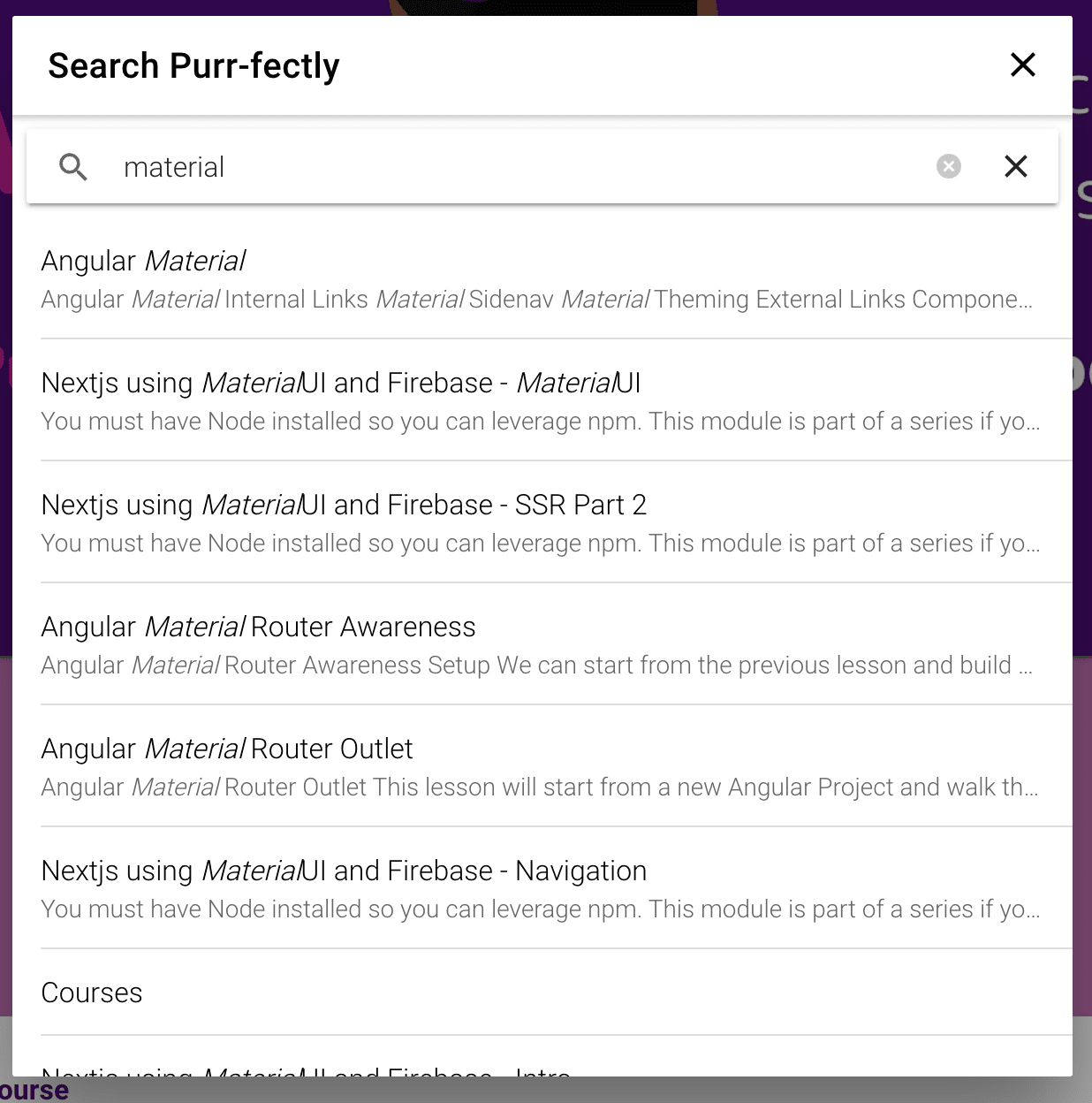
So for this Web Component we are going to code a Custom Element from scratch, not using Stencil, Polymer, or Angular.This just builds a simple search modal that allows for Algolia search searchResults:
Modal Code
I don't know if I can add much more than what Eric Bidelman wrote for Custom Elements. I would just say you can basically put anything in them, just make sure you have the connectedCallback() in place if you need to run code each iteration.
connectedCallback: Called every time the element is inserted into the DOM. Useful for running setup code, such as fetching resources or rendering. Generally, you should try to delay work until this time.
customElements.define(
	'modal-search',
	class extends HTMLElement {
		constructor() {
			super();
			this.attachShadow({ mode: 'open' });
		}
		connectedCallback() {
			const ionHeader = document.createElement('ion-header');
			const ionToolbar = document.createElement('ion-toolbar');
			const ionTitle = document.createElement('ion-title');
			ionTitle.innerHTML = <ion-label color="primary">Search Purr-fectly</ion-label>;
			const ionButtons = document.createElement('ion-buttons');
			ionButtons.setAttribute('slot', 'primary');
			const ionButton = document.createElement('ion-button');
			ionButton.addEventListener('click', async () => {
				const modalController = document.querySelector('ion-modal-controller');
				await modalController.dismiss({ dismissed: true });
			});
			const ionIconClose = document.createElement('ion-icon');
			ionIconClose.setAttribute('slot', 'icon-only');
			ionIconClose.setAttribute('name', 'close');
			ionButton.appendChild(ionIconClose);
			ionButtons.appendChild(ionButton);
			ionToolbar.appendChild(ionButtons);
			ionToolbar.appendChild(ionTitle);
			ionHeader.appendChild(ionToolbar);
			const ionSearchbar = document.createElement('ion-searchbar');
			const searchContent = document.createElement('ion-content');
			ionSearchbar.addEventListener('ionChange', async (ev) => {
				try {
					const searchResults = await index.search({ query: ev.detail.value });
					const ionList = document.createElement('ion-list');
					searchResults.hits.forEach((hit) => {
						const ionItem = document.createElement('ion-item');
						ionItem.setAttribute('href', hit.url);
						const ionLabel = document.createElement('ion-label');
						const title = document.createElement('h2');
						title.innerHTML = hit._highlightResult.title.value;
						ionLabel.appendChild(title);
						const summary = document.createElement('p');
						summary.innerHTML = hit._highlightResult.summary.value;
						ionLabel.appendChild(summary);
						ionItem.appendChild(ionLabel);
						ionList.appendChild(ionItem);
					});
					searchContent.innerHTML = ionList.innerHTML;
				} catch (err) {
					console.log(err);
					console.log(err.debugData);
				}
			});
			this.shadowRoot.appendChild(ionHeader);
			this.shadowRoot.appendChild(ionSearchbar);
			this.shadowRoot.appendChild(searchContent);
		}
	}
);
Event Listener for click
This is utilizing Ionic's Modal. Please also not you MUST include the <ion-modal-controller> in your site or this will not work (trust me lost hours of my life on that one)! Notice in modalController.create we are passing a component: 'modal-search' property. This is the name of custom element that we created above.
mainSearch.forEach((b) => {
	b.addEventListener('click', async (event) => {
		// initialize controller
		const modalController = document.querySelector('ion-modal-controller');
		await modalController.componentOnReady();
		// present the modal const modalElement =
		await modalController.create({
			animated: true,
			component: 'modal-search',
			componentProps: {
				search: event.currentTarget.getAttribute('search')
			}
		});
		await modalElement.present();
	});
});
The BEST Part
Now I could package this up and add it to NPM as a nice package. Better yet we could create it from a Stencil component next.Let me know what you think!
Resources, Links & Official Documentation
- MDN HTML Reference: Semantic markup, accessibility attributes, and document structure
Related CodingCat.dev Tutorials & Podcast Episodes
- Adding Angular Components to your static site: Utilizing Web Components within Hugo Static Site Generator (or any static site), to take Stripe/PayPal payments and more!
- Scully - Angular Static Site Generator: In the Static Site Generator (SSG) space, ReactJs has Gatsby and VueJs has Vuepress/Gridsome. This left for a space to be filled for Angular, introducing Scully...
- Hugo Ionic Template: How to use AJonP's Hugo Ionic Template, while building Algolia Indexes and deploying to Firebase Hosting
Frequently Asked Questions (FAQ)
What are the main takeaways from Adding Web Component for Ionic Modals?
Utilizing Web Components within Hugo Static Site Generator (or any static site). Adding a Custom Element for an Ionic Modal pop-up. Adding Web Component for Ionic Modals explores practical patterns for HTML in modern software engineering. Throughout this post, Alex Patterson breaks down real-world implementation details for HTML so developers can apply these patterns directly in production.
How do you implement HTML best practices in production?
When adopting HTML in a production stack, start by validating your configuration against the MDN HTML Reference (Semantic markup, accessibility attributes, and document structure). Focus on incremental adoption, automated testing, and observability so your team can measure performance and developer velocity improvements at each stage.
Where can I watch the full Adding Web Component for Ionic Modals walkthrough and find related code resources?
You can explore the complete write-up and code examples right here on CodingCat.dev, and subscribe to the CodingCat.dev YouTube channel for weekly video tutorials. For a deeper dive into HTML, check out our related guide: Adding Angular Components to your static site.
how this post connects together.
Follow AJ from first principles to production-ready architecture.
Watch the Related Video Deep Dive: The Odin Project 5: Advanced HTML, CSS View Transitions & WCAG Accessibility
Build 60fps GPU-accelerated animations, multi-page Astro View Transitions, WCAG AAA focus rings, and accessible native <dialog> and Popover components.